Antialiasing
Smooth lines, curves, and fonts for better-looking embedded GUIs
- Reduce jagged edges in lines and curves
- Improve font rendering and readability
- Adjustable quality to balance appearance and performance
How antialiasing works
Lines and curves displayed on a pixel-based screen can appear jagged, particularly when they are diagonal or nearly horizontal or vertical. This effect is known as aliasing.
Antialiasing reduces these jagged edges by blending the foreground color with the background color, creating smoother transitions between pixels. The result is a more natural appearance of lines and curves.
emWin supports different antialiasing quality levels. Higher quality settings produce smoother results but require more processing time.
Please note: Antialiasing support is available as a separate add-on and is not included in the standard emWin package.
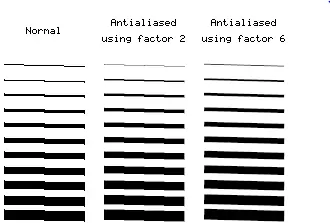
Antialiasing quality
Antialiasing quality can be adjusted on a scale from 1 to 6, with 1 disabling antialiasing and 6 providing the highest quality. For most applications, a setting of 4 offers a good balance between visual quality and performance.
| Font type | Black on white | White on black |
|---|---|---|
Standard (no antialiasing) |  |  |
| Low-quality (antialiased) 2 bpp, 4 shades |  |  |
| High-quality (antialiased) 4 bpp, 16 shades |  |  |
Antialiased fonts
Fonts are available with two levels of antialiasing: low quality (2 bpp) and high quality (4 bpp). The following table compares how the character "C" is rendered without antialiasing and with both quality levels.
Antialiased fonts can be created using the Font Converter. Antialiasing improves the appearance and readability of text by smoothing character edges. Higher quality settings produce smoother results but also increase processing time and memory requirements.
Low-quality antialiased fonts (2 bpp) require twice as much memory as non-antialiased fonts (1 bpp), while high-quality antialiased fonts (4 bpp) require four times as much memory.
High-resolution coordinates
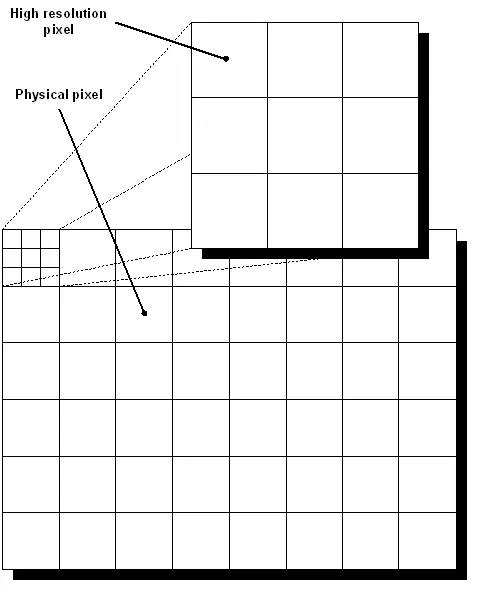
When drawing with antialiasing, the same coordinates are used as with standard drawing routines. This is the default mode, so the antialiasing factor does not need to be taken into account when specifying function arguments.
For example, an antialiased line from (50, 100) to (100, 50) can be drawn using the following function call:
GUI_AA_DrawLine(50, 100, 100, 50);emWin also supports high-resolution coordinates, which provide a virtual coordinate space based on the display dimensions and the antialiasing factor. This allows graphical elements to be positioned between physical display pixels for more precise rendering.
The illustration below shows the virtual coordinate space for an antialiasing factor of 3.
To draw the same line from (50, 100) to (100, 50) in high-resolution mode with an antialiasing factor of 3, use:
To draw a line from pixel (50, 100) to (100, 50) in high-resolution mode with antialiasing factor 3, one would write:
GUI_AA_DrawLine(150, 300, 300, 150);High-resolution coordinates must be enabled with the routine GUI_AA_EnableHiRes(), and may be disabled with GUI_AA_DisableHiRes(). Both functions are explained later in the chapter. For example programs using the high-resolution feature, see the examples at the end of the chapter.