Technology
Graphics for resource-constrained systems
emWin is a graphics package ideally suited for resource-constrained systems requiring high-quality output. Its capabilities cover everything from basic text display through numerous widgets and user interactions to sophisticated animations.

Overview
The graphic library emWin is a professional tool for creating embedded GUIs. Even resource-constrained microcontroller-based applications are capable of running sophisticated and interactive user interfaces with emWin. It is optimized to be used with any target and display and any application from battery-powered single-chip products to high-end embedded systems. emWin can be used with any IDE and does not require an RTOS.
Key features
- Any display controller supported (monochrome, grayscale, color)
- Support for any IDE and toolchain
- Any microcontroller supported
- No RTOS required
- Small footprint
- Source code available
- VNC server and VNC client with support for file transfers available
- Graphics, and fonts can be stored in any memory space or swapped out to an external medium
- Pre-defined standard skins for widgets
- Common image formats supported (BMP, GIF, PNG, JPEG)
Flexible setup

emWin was developed for efficient, processor and display controller-independent graphical user interfaces for any application that uses a graphical display. It is compatible with single-task and multitask environments, with a proprietary operating system, or with any commercial RTOS, and can be adapted to any size of physical and virtual displays with any display controller and CPU.
Ready-to-use MCUs
Several microcontrollers provide true hardware acceleration for graphical operations. They offload the CPU for all or most of the graphical operations by using DMA engines or other hardware blocks, allowing high throughputs.
emWin supports many popular hardware accelerators through its GPU drivers, such as ST ChromART Accelerator, ST NeoChrom Accelerator, DAVE 2/D Drawing Engine by Renesas, Pixel Pipeline by NXP, GFX2D Accelerator by Microchip, and many more.
emWin can display vector graphics stored as an SVG (Scalable Vector Graphics). If hardware acceleration is present, emWin makes use of accelerated functions using OpenVG or VGLite.
If hardware acceleration or a vector-graphics library is present, emWin makes use of it for drawing SVGs using ThorVG, VGLite, OpenVG or NemaVG.
Multi-layer support
A lot of modern LCD controllers offer the ability to use multiple layers. In emWin each layer could be used with its own color depth, size, and position. Every single layer could use its own display driver. That makes it possible to use multiple displays simultaneously, or multiple layers and multiple displays.
Supported display drivers
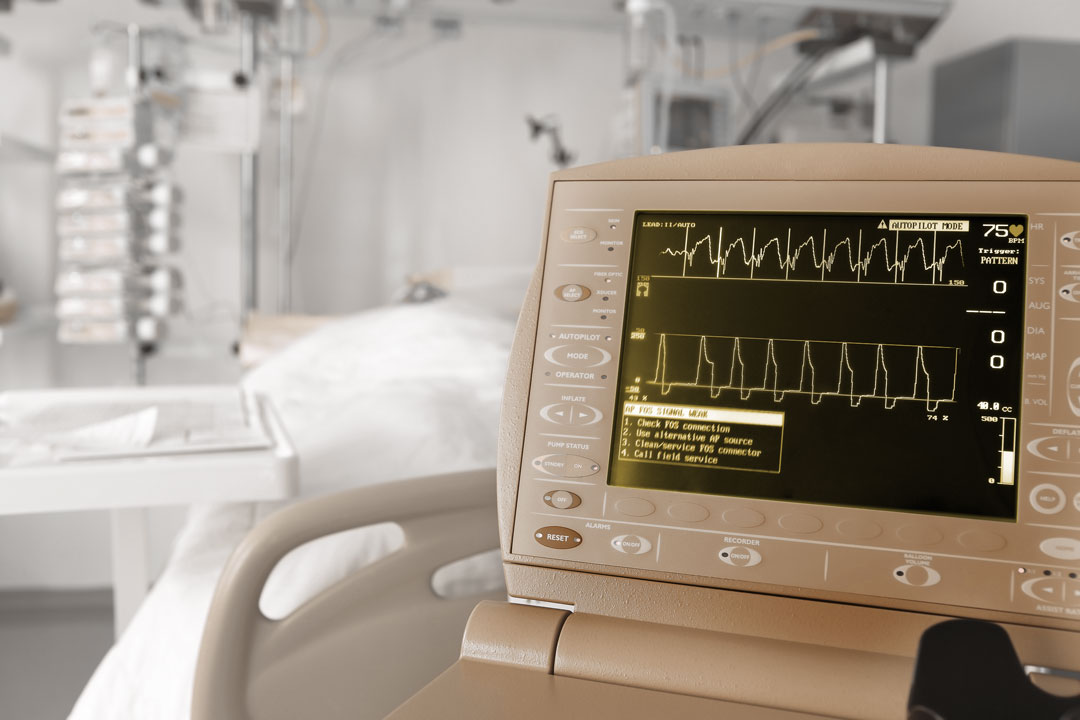
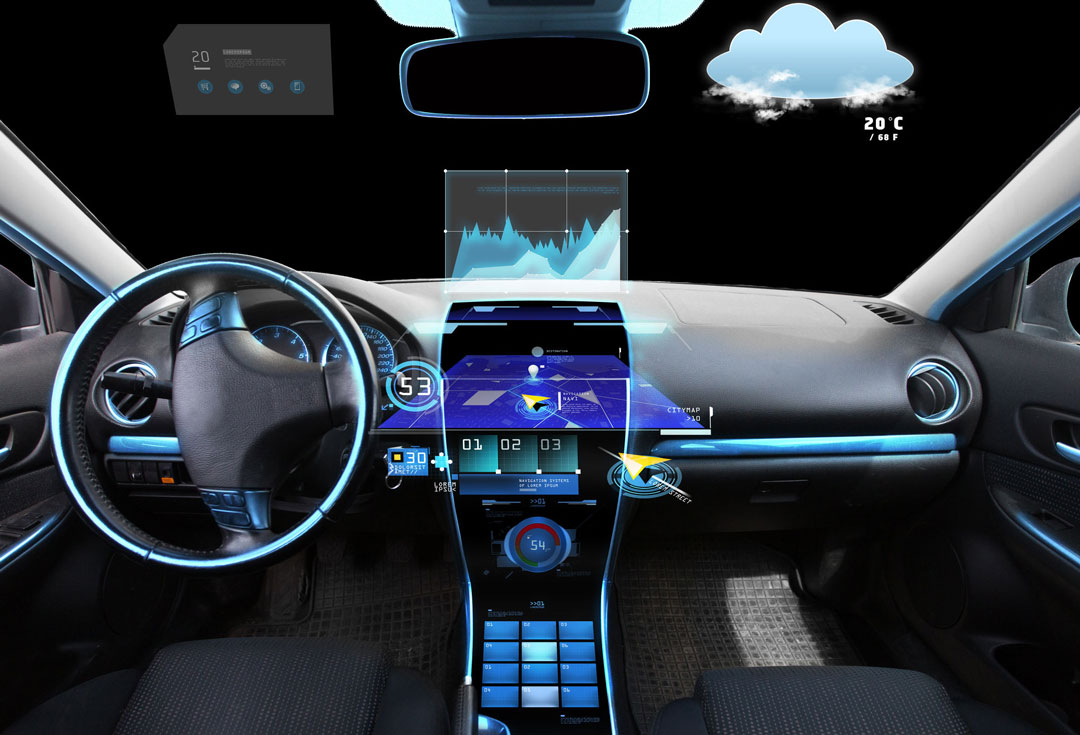
Numerous display drivers for different purposes are supported by emWin. Any commonly used display is therefore supported, e.g monochrome, grayscale or color displays. emWin covers a broad number of applications ranging from medical devices such as heart rate monitors to complex car displays.
Resource managment

Thanks to emWin's unparalleled resource efficiency, even for larger systems including WindowManager and widgets, in many cases 130 KB of RAM and 256 KB of flash memory are enough to develop a user-friendly and modern application. In addition, emWin offers various settings to further optimize the RAM and ROM requirements, for example using the window manager without transparent windows or disabling text rotation.
Language support

While the output of text is reduced to simple output of the desired strings in most languages, the output of Arabic, Hebrew, Thai, or bidirectional texts requires a bit more effort.
To turn on the language support, only a few function calls are required when starting the application, and all text-based functions will automatically support the required languages.
The text and language resource files enable easy multi-language applications. One can store one or multiple text or CSV files containing text in different languages. This allows changing the text of an application without modifying the code.
Fonts

Writing text in emWin is based on the UTF-8 encoding. It supports drawing all characters of the "Basic Multilingual Plane" (BMP, plane 0) which covers the code points from 0x0000 to 0xFFFF.
Furthermore, it contains the algorithm needed for bidirectional scripts and text. emWin supports various types of fonts which can be implemented as C font files, as TrueType font files, as SIF, XBF, and iType. To save memory emWin provides three options: The first one is a limitation of the character set to only those characters that are actually displayed on the screen. One can also save all codepoints, i.e. the characters, which are used in the application, in a pattern file. Last but not least, it’s also possible to specify the Unicode range which is used.
Scalable vector fonts
emWin supports scalable vector fonts that can be rendered at any required size at runtime while keeping memory requirements low. A single vector font can be used for multiple font sizes, eliminating the need to store separate font data for each size.
Vector fonts can be generated with the emWin Font Converter and can be limited to only the characters required by the application. They are available as C files or External Vector Font (XVF) files, both optimized for fast lookup and low memory usage.
Vector fonts are rendered efficiently without requiring a GPU. emWin includes a fast software renderer and can make use of a compatible GPU or 2D graphics accelerator when available. An optional bitmap cache can further improve rendering performance by storing frequently used characters.
Compared with FreeType, emWin's vector font implementation requires significantly less memory, with approximately 3–7× less ROM for the code and around 4× less RAM, excluding the optional cache. Integrated kerning, rotated text, and runtime italicization further simplify font handling without requiring separate italic font data.
Image support
emWin supports a wide range of image formats, including several emWin specific formats as well as BMP, JPEG, GIF, PNG, and SVG files.
Bitmaps

The recommended and most efficient way to display a bitmap known at compile time is to use one of the emWin specific formats. To display an image not known at compile time, it must to be available in a graphic file format supported by emWin.
In this case, the image file can reside in memory or on any other storage device. It can be displayed even if the amount of available memory is less than the size of the image file. emWin supports BMP, JPEG, GIF files. PNG file support can be achieved by adding a PNG library.
emWin-specific bitmap formats
emWin offers a number of bitmap formats. The color depth ranges between 1 and 32 depending on compression, transparency and palette. It also includes several RLE formats.
Neighboring, identical color codes are combined, so that the corresponding color and the corresponding number of occurrences are stored only once. The RLE alpha format makes it possible to represent the same image with different colors.
Memory bitmaps
Memory bitmaps are bitmaps that are stored completely in RAM and are based on memory devices. They offer a streamlined approach to image rendering that is particularly beneficial on systems with ample memory resources. While rooted in memory devices, memory bitmaps transcend their limitations and provide a fast alternative for image handling.
Key features of memory bitmaps include:
- Simplified integration: Using the familiar emWin bitmap API, memory bitmaps streamline image output without complicated memory device handling.
- Customization options: Users can customize memory bitmap creation by adding custom drawing functions and adjusting color formats to meet specific requirements.
- Versatile source compatibility: Memory bitmaps can be generated from images stored in both internal and external memory sources, enhancing flexibility.
- Optimized use of resources: Enables pre-drawing of shapes and reduces ROM requirements through image packing and on-the-fly "unpacking."
Vector graphics
emWin can display vector graphics stored as an SVG (Scalable Vector Graphics). If hardware acceleration is present, emWin makes use of accelerated functions using OpenVG or VGLite.
Widgets & Window manager

A set of routines to easily create, move, resize, and manipulate any number of windows is supplied by the emWin PRO WindowManager (WM). It permits the use of multiple windows at once and the layering of different windows.
emWin widgets are windows with object-type properties. Those control elements react to certain events and enable user interaction. emWin provides dozens of available widgets which mostly can be “skinned” appearance-wise.
Animations

Bringing up motion into an application can be done in several ways. If a fixed sequence of pictures does not work and one or more objects happen to change properties like position, color, shape, size, or whatever within a given period of time, emWin offers an animation object for exactly that purpose.
It can animate multiple items during the timeline of an animation. An animation item is a custom-defined routine that receives a position value from the animation object. That value is calculated independent of the current point in time. The calculation could be done by predefined or custom-defined methods.
Movies

emWin comes with a specific movie format EMF (EmWin Movie File Format), which provides three main advantages: Only one frame is required in memory, no decompression algorithms are needed and no license fees are required. To make the conversion of nearly any movie format to EMF easy, emWin comes with a converter based on the open-source tool FFmpeg which is available under www.ffmpeg.org. The free software can convert files of nearly any movie file source format into any desired destination format, as well as into single JPEG files.
Simulation
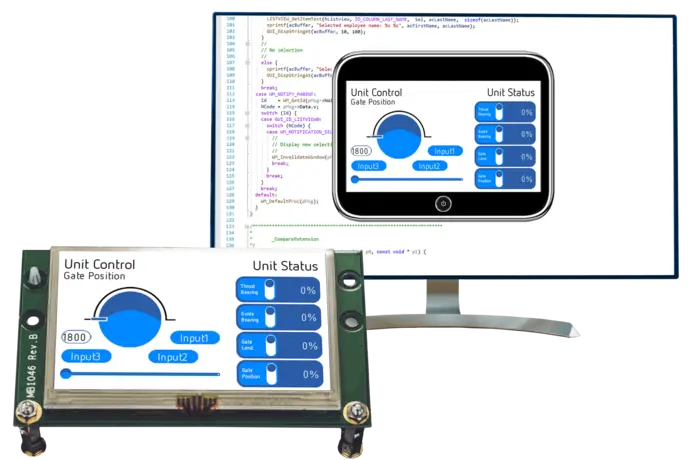
emWin enables rapid GUI development using a PC and a pixel-perfect simulation library. These combine to replicate the user experience, exactly — both display content, as seen on the target screen, and user input are supported for live interaction. Because the simulation uses the same C code as is compiled for the target, what is experienced on the PC is what is experienced on the target. It compiles and executes the application code on the Windows host system. This enables designing and debugging the user interface on the host PC. With this feature, working demonstrations of the application can be made for discussion of the user interface. Another advantage of simulation is that development can start well before hardware is ready, helping reduce time to market. If an application uses multiple display layers, such as foreground and background, emWin can show each display layer individually, in its own window, as well as a composite view which represents the final content to be seen by the user. To run in simulation, Microsoft Visual Studio or Code::Blocks/MinGW is needed.