VNC Support
Introduction
VNC consists of two types of components. A server, which generates a display, and a viewer, which actually draws the display on your screen. The remote machine (target or simulation) can not only be viewed, but also controlled via mouse or keyboard. The server and the viewer may be on different machines and on different architectures. The protocol which connects the server and viewer is simple, open, and plat- form independent. No state is stored at the viewer. Breaking the viewer's connection to the server and then reconnecting will not result in any loss of data. Because the connection can be remade from somewhere else, you have easy mobility. Using the VNC server, you may control your target from anywhere and you can make screenshots (e.g. for a manual) from a "live" system.
Requirements
TCP/IP stack
Since the communication between the server and the viewer is based on a TCP/IP connection, VNC requires a TCP/IP stack. In the Win32 simulation environment, TCP/ IP (Winsock) is normally present. In the target, a TCP/IP stack needs to be present. The TCP/IP stack is NOT part of emWin. The flexible interface ensures that any TCP/ IP stack can be used.
Multi tasking
The VNC server needs to run as a separate thread. Therefore a multi tasking system is required to use the emWin VNC server.
Notes on this implementation
Supported client to server messages
The emWin VNC server supports pointer event messages and keyboard event messages.
Encoding
The server supports raw encoding and hextile encoding.
Authentication
The Server currently does not require authentication. However, this feature can be added to the server easily at request.
Performance
Most viewers support hextile encoding, which supports descent compression. A typical quarter VGA screen requires typically 20 - 50 kb of data. An implementation running on an ARM7 platform (50 MHZ, with Cache) requires app. 200 - 300 ms for an update of the entire screen. The server handles incremental updates; in most cases the updated display area is a lot smaller than the entire display and less data needs to be transmitted. A typical ARM7 system therefore allows real time updates.
Multiple servers
The implementation is fully thread safe and reentrant; multiple VNC servers can be started on the same CPU for different layers or displays. If your target (of course the same holds true for the simulation) has multiple displays or multiple layers, this can be a useful option. Only one VNC server may be started per layer at any given time; once the connection to a Viewer ends, an other one can connect.
The VNC viewer
Availability
The sub folder™Tool™ contains a VNC viewer from the AT&T Laboratories Cambridge. It is free software and is distributed under the terms of the GNU Public License. The current version of the VNC software can be downloaded from http:// www.uk.research.att.com/vnc, where more information about the VNC protocol, as well as source code for servers and clients for different platforms are available.
Version
The VNC implementation of emWin has been tested with version 3.3.3R2 and should work with this version or later versions.
Platforms
The viewer is available for different platforms. Please take a look to the web site of AT&T Laboratories Cambridge for detailed information about the availability.
Starting the VNC viewer
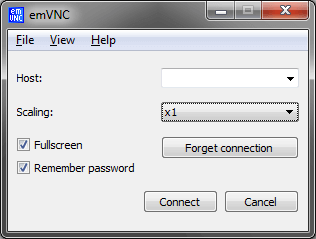
Start the viewer by double-clicking the file ToolVNCViewer.exe. It will prompt for the VNC server to be connected:

Connecting to a VNC server using the simulation on the same PC
When running VNCViewer and simulation on the same PC, type "localhost:0" to connect. ":0" means server index 0. If you omit the server index the viewer assumes server 0. So in the most cases you can type "localhost" to connect to the simulation.
Connecting to a VNC server running on a different PC or the target
To connect to VNC server running on a different PC or on the target system, enter the name or IP address of the machine (optionally followed by a ":" and the server number). To connect to a VNC server on the computer "Joerg" , with IP address 192.168.1.2, you may enter "192.168.1.2:0", or "Joerg:0" or "Joerg". To connect to a target with IP address 192.168.1.254, enter "192.168.1.254".
Screenshot
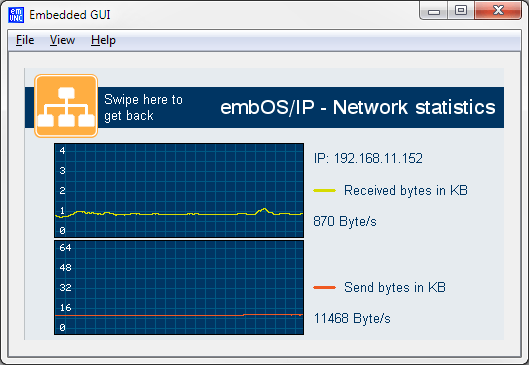
The following screenshots shows the viewer:
| Connected to the simulation | Connected to the target |
![]() |
![]() |
emWin VNC server
Starting the emWin VNC server
The one and only thing to start the VNC server is to call the function
GUI_VNC_X_StartServer():
void MainTask(void) {
GUI_Init();
GUI_VNC_X_StartServer(0, /* Layer index */
0); /* Server index */
...
}
The above function call creates a thread which listens on port 5900 for an incoming connection. After a connection has been detected GUI_VNC_Process() will be called.
Ports
The VNC server listens on port 590x, where x is the server index. So for most PC servers, the port will be 5900, because they use display 0 by default.
How the server starts ...
When using the simulation, only the function GUI_VNC_X_StartServer() needs to be called. It creates a thread which listens on port 590x until an incomming connection is detected and the calls GUI_VNC_Process(), which is the implementation of the actual server.
Integration of the VNC server on the target
Before the function GUI_VNC_X_StartServer() can be used, it has to be adapted to the used TCP/IP stack and the multi tasking system. An implementation sample, which should require only smaller modifications will be provided. The sample file does not use dynamic memory allocation to allocate memory for the GUI_VNC_CONTEXT structure described later. So this implementation only allows to start one server.
Configuration options
| Type | Macro | Default | Explanation |
|---|---|---|---|
| N | GUI_VNC_BUFFER_SIZE | 1000 | Frame buffer size. The buffer will be allocated on the stack. It does not speed up the system if enlarging the buffer size. If the stack size is short the size of the buffer can be reduced down to app. 200 bytes. |
| B | GUI_VNC_LOCK_FRAME | 0 | If set to 1 the GUI will be locked during a frame is send to the viewer. This option could make sense if screenshots for a documentation should be made. |
| S | GUI_VNC_PROGNAME | (see explanation) | This macro defines the name of the target shown in the title bar of the viewer. If using the viewer in the simulation the default is: "Embedded GUI on WIN32" If using on the target the default is: "Embedded GUI" |
| B | GUI_VNC_SUPPORT_HEXTILE | 1 | Enables or disables hextile encoding. Hextile encoding is faster but needs bigger code (app. 1.4K more) |
Sample
The trial version also contains the VNC server; it takes no more than one line of code (using GUI_VNC_X_StartServer()) to activate it.
| Single layer sample | ||
| Screenshot Simulation | Screenshot VNC Server | |
Download the VNC_singlelayer sample |
![]() |
|
| Multi layer sample | ||
| Screenshot Simulation | Screenshot VNC Server | |
![]() |
Layer 0 Layer 1 ![]() |
|
Download the VNC_multilayer sample
The samples above are pre-compiled executables and generated with the emWin simulation. They can be executed on any PC. The VNC viewer can be used to connect.
VNC Support