emWin
Highly efficient graphical user interfaces (GUIs) on any embedded system
- Enables modern and responsive user interfaces on embedded devices
- Supports displays ranging from simple panels to high-resolution screens
- Optimized for resource-constrained systems with flexible hardware integration

Key features
emWin simplifies the process of creating visually appealing and user-friendly interfaces, reducing development time and effort. It provides an easy-to-use and powerful API as well as functions for tasks such as drawing shapes, rendering images, handling touch inputs, managing display buffers, and interfacing with display hardware. emWin is a crucial element for embedded projects that require GUIs, data visualization, or any form of visual feedback.
Great portability and versatility
Users can integrate emWin into new hardware platforms and a variety of microcontroller architectures. It runs on any platform, from low-end microcontrollers to high-end processors with varying capabilities. It also supports any microcontroller, display, or display controller, and it enables UI functionality on headless devices through VNC.
High-quality drawing operations
emWin core functionalities are designed for precise rendering of all graphical elements, including lines, shapes, gradients, and bitmaps. Included here are the rendering functions for the window manager, widget library, and font support. Developers can apply anti-aliasing to all rendering functions to ensure that any element (including fonts) is displayed with smooth edges. Furthermore, this also applies to alpha blending operations.
Low memory footprint
Optimized for performance and memory use, emWin is tailored to the constraints and requirements of embedded applications. With efficient rendering algorithms and memory-management strategies, it minimizes resource consumption while also maintaining responsive UI performance.
Use cases
emWin can be adapted to any application, from battery-powered single-chip products with basic graphical requirements, to high-end embedded systems requiring extreme levels of performance and sophisticated animations. A state-of-the-art GUI solution in the embedded industry, emWin is used in a variety of areas, including industrial control systems, applications within the Internet of Things, networking, consumer electronics, safety-critical devices, automotive systems, medical devices, and avionics systems.

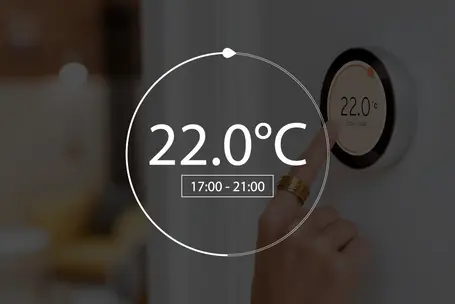
Sophisticated GUIs for smart appliances
emWin is ideal for creating sleek, intuitive graphical interfaces for responsive and customizable displays that match brand aesthetics and user preferences. With features such as touch support, animation, and compatibility with multiple languages, emWin allows for the development of visually appealing menus on a wide range of devices.
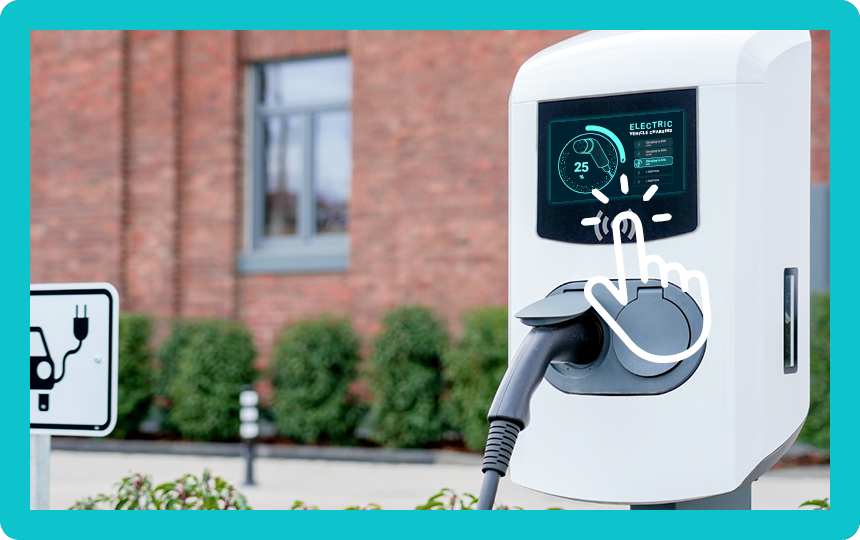
Intuitive dashboards for global consumer products
emWin enables the development of dashboards for global consumer products, such as electric-vehicle charging stations with real-time data visualization and up-to-the-second updates. emWin simplifies control for a wide range of users and use profiles, enhancing accessibility and functionality.
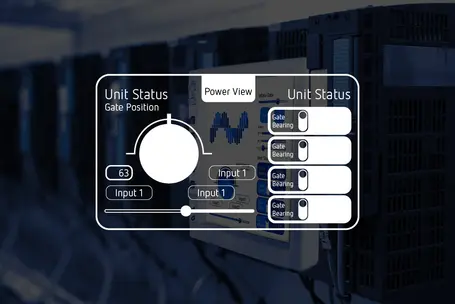
Interactive operator panels for industrial control systems
emWin is ideal for developing interactive operator panels for industrial control systems, making complex processes easier to monitor and manage. Designed for embedded systems, emWin ensures reliability and responsiveness in demanding industrial environments, enhancing productivity and reducing error.
Customer voices
"I've been using emWin for a few days and am excited by how fast the library is, how well it works, and how easy it is to integrate. Fantastic."
// Thomas Karer, ARRI Cine & Video Geräte, Vienna, Austria
"I have used emWin for a week now and am thrilled. This is a very good software package! Thanks to the good documentation and the many practical examples, it is easy to get started. I think we made a very good choice."
// Dipl.-Ing.(FH) Martin Zeh, Erhardt + Leimer GmbH, Stadtbergen, Germany
Real-world demos
Electric-vehicle charging
A demo showcasing a sleek, interactive dashboard for electric-vehicle charging. Perfectly tailored for in-car displays, the dashboard highlights real-time charging data.
Coffee machine
An opportunity to experience a coffee machine's intuitive user interface, this demo showcases intuitive controls, responsive design, and engaging animations—all through a single, visually appealing dashboard.
How emWin works
emWin provides a comprehensive API as well as a range of tools for creating visually appealing and interactive interfaces. It supports real-time updates, custom graphics, and touch inputs, and the graphics library is compatible with multiple platforms—enabling it to run on a variety of operating systems and hardware architectures.
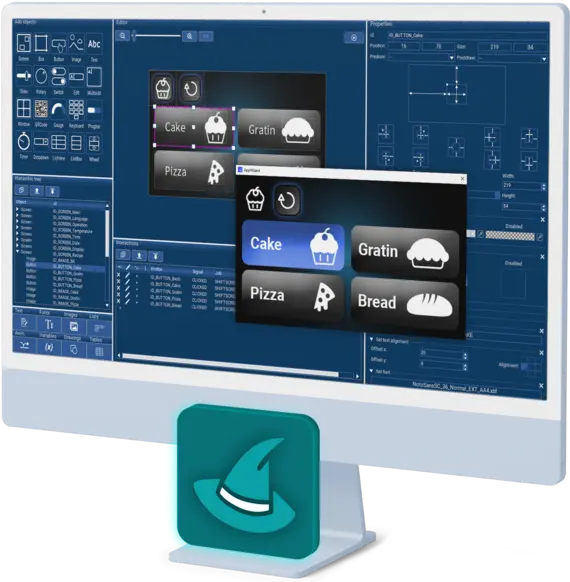
emWin is compatible with single- and multi-task environments, and it supports many IDEs, popular toolchains, and proprietary operating systems (e.g., SEGGER's embOS RTOS). Developers can use emWin's what-you-see-is-what-you-get tools (such as the AppWizard) to design GUIs without doing any coding, and they can create custom widgets via callbacks or the owner-draw function.
emWin is compatible with capacitive touch systems, and it automatically manages data transfer and processing (typically x and y coordinates and an identifier from a touch contoller). Additionally, emWin offers the option to calibrate a touch controller. Due to its modular design, emWin is highly versatile and can be integrated into a wide range of applications.
Award-winning GUI design tool: AppWizard
SEGGER's award-winning AppWizard enables the creation of impressively efficient and high-quality GUIs on any embedded system, and it does so in the simplest possible way—without the need to write any code. AppWizard enables limitless creativity in embedded-systems GUI design, and the free trial version comes with a variety of practical examples to get users started. AppWizard takes GUIs to the next level.
Interested in integrating AppWizard into your application?
Please contact us.
Tool set
emWin4Web
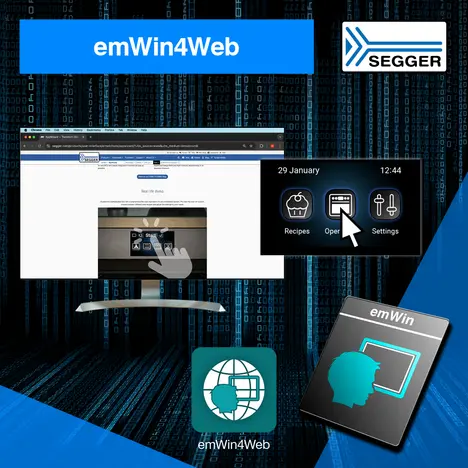
emWin4Web enables developers to run GUIs for embedded applications directly in web browsers.


Licensing
The software is available under various embedded software license models and can be delivered as source code. All commercial licenses are based on a one-time payment, are royalty-free, and include six months of updates and support from SEGGER’s Embedded Experts.
There are no subscription fees, ensuring predictable and fixed costs over the entire product lifetime.
For non-commercial use, evaluation, and educational purposes, the software is provided under SEGGER’s Friendly License.
Package contents
| emWin PRO | emWin BASE color | emWin BASE grayscale | emWin BASE b/w | |
|---|---|---|---|---|
| Full color support | ||||
| Grayscale support | ||||
| 2-color (b/w) support | ||||
| Touchscreen support | ||||
| Basic fonts charset ISO 8859-1 | ||||
| emWinView | ||||
| Simulation library | ||||
| Bitmap Converter | ||||
| Antialiasing | ||||
| Memory devices | ||||
| WM/Widgets | ||||
| MultiTouch | ||||
| Simulation Source | ||||
| VNC Server | ||||
| Font Converter | ||||
| AppWizard | ||||
| Display driver included |
Core component | Optional add-on | Not available
Silicon vendor buyouts
SEGGER offers the option to license emWin for redistribution to company customers on a company's own terms. A free commercial license may be used to develop applications for certain devices from a silicon vendor, meaning emWin is pre-licensed for their microcontroller families. Free licenses are easy to activate through the license-request dialog.



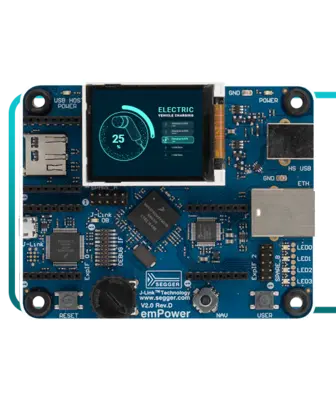
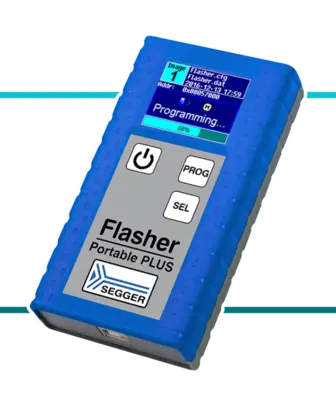
emWin empowers SEGGER hardware products
Getting started
Generally speaking, to get started, users need emWin's core C files, the display driver, font files, and any optional modules ordered. For some CPUs, example projects are also available to make things easier. For tutorials with detailed information, please visit the SEGGER Knowledge Base and/or consult the online documentation.
FAQ
Do I have to pay additional royalties for self-made-hardware components?
No, all options are royalty-free and allow an unlimited production volume.
Does emWin support bidirectional scripts?
Yes, emWin also supports bidirectional script, e.g. Hebrew (RTL) mixed with German (LTR) or Arabic mixed with Greek.
Is it possible to store languages and font types on an external storage device?
This is up to you and depends on the capacity of your memory.
I want to illustrate symbols, drawings, background images, buttons, drop down menus with drawings and text (up to 4-layer deep), alpha blending, pop-up windows, scroll bars etc.
All requested elements are supported by emWin and provided as widgets. For more information please visit the emWin Widgets page.
Is it possible to design my own widgets with emWin?
Yes! You can freely determine and design widgets and windows by overwriting the callback feature or setting an owner-draw feature. Please visit the emWin Samples page for more information.
I want to apply a capacitive touch. We want to address the given touch control unit directly. Is this supported by emWin?
Yes, capacitive touch is supported by emWin. You just need to transfer the data to emWin which you get from the touch controller. These are typically x- and y- coordinates and the ID. The processing of the data will be handled by emWin automatically. Additionally, emWin offers the option to calibrate the touch controller.
Latest news
Get in touch with us
Have questions or need assistance? Our Embedded Experts are here to help!
Reach out to us for:
- Licensing quotes
- Technical inquiries
- Project support